Stenor
Hold a key to dictate into any Windows app via Google Gemini.
Replaces Wispr Flow, Superwhisper, Willow Voice, Aqua Voice, Dragon Professional
Who it's for
Stenor lets you dictate into any writing environment, including Google Docs, Notion, WordPress, or plain text editors, without switching to a dictation app first. The hold-and-release workflow keeps the dictation transparent to the broader writing session.
If you need speaker separation, timestamps, or a transcription archive, Stenor stores nothing. A dedicated transcription tool or a meeting recorder is better suited to those workflows.
Dictating comments, commit messages, and documentation directly into VS Code or a text editor saves the context switch between keyboard and voice. Stenor injects into any focused field in a code editor, including input dialogs and search boxes.
Stenor cannot inject text into elevated prompts without being run as administrator itself. Developer environments that frequently require admin prompts need that one-time setup step.
Agents can dictate responses in CRM fields, email clients, and ticketing tools without leaving the focused window. The 97-language support handles multilingual queues without reconfiguring the tool between tickets.
Teams using macOS or Linux workstations need a different tool. Stenor is Windows-only.
The problem
Fast typing on a keyboard is not how ideas arrive for many people. Writers, support agents, and developers who need to capture thoughts as they occur find that dictation is faster than typing, but Windows lacks a built-in voice-to-text tool that works reliably across every application. Paid voice dictation tools like Dragon Professional charge per license, while subscription services like Wispr Flow and Superwhisper require a monthly fee. Free alternatives either lack accuracy, require extensive configuration, or are locked to a specific app rather than working wherever your cursor is. Users who want privacy, low cost, and cross-app dictation on Windows have had to piece together awkward workarounds or pay for a tool they would prefer not to depend on.
How it works
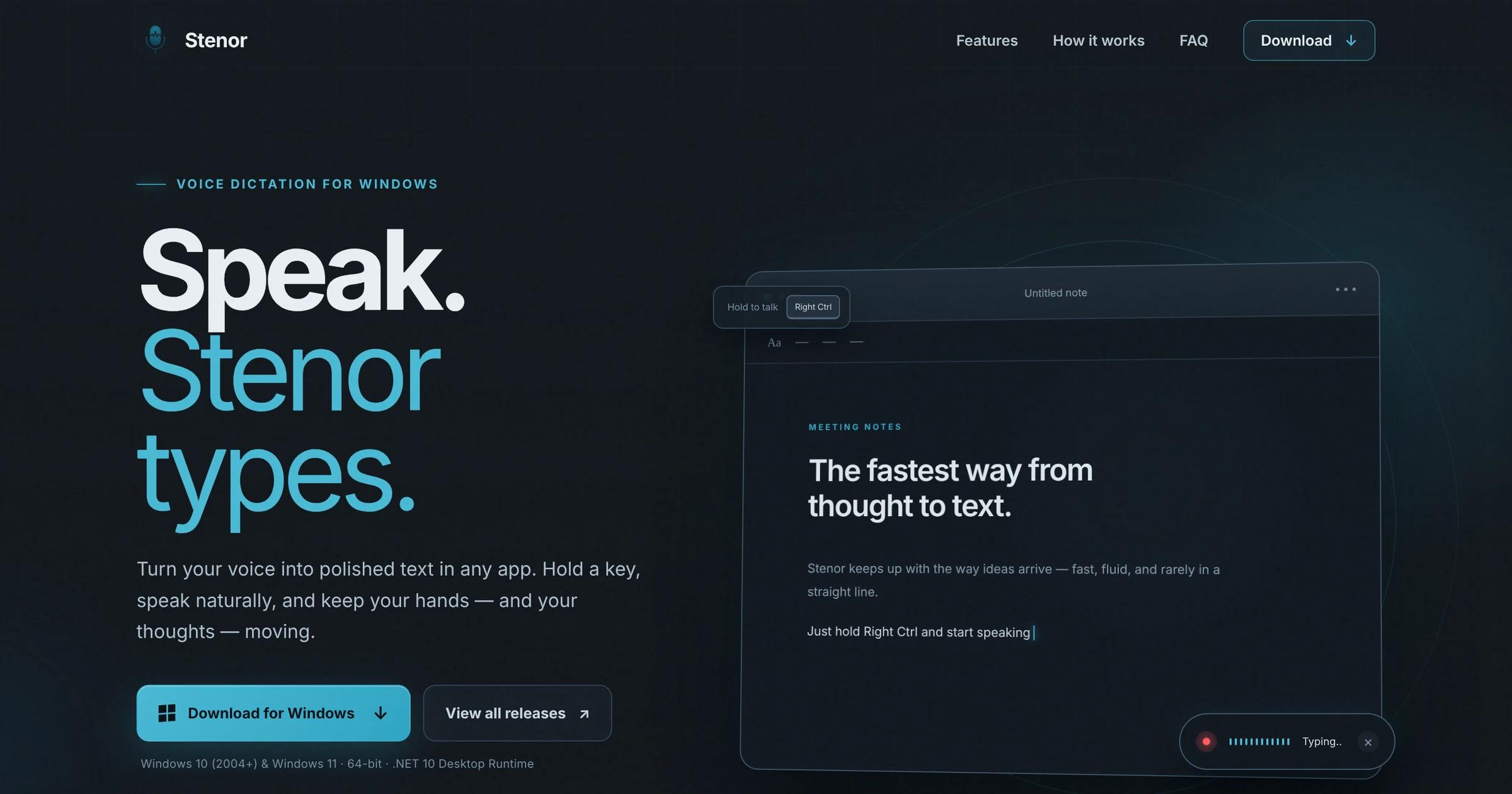
Works in any Windows application with a focused text field, including Word, Slack, VS Code, browsers, and email clients. The finished transcription is injected directly where the cursor is, with no copy-paste step required.
Sends recorded audio to Google Gemini for transcription, which supports 97 spoken languages with automatic detection. Mixed-language speech is handled without any configuration change between languages.
Default hotkey is Right Ctrl, with hold-to-talk (hold to record, release to transcribe) or toggle mode available. Any key or combination can be substituted in Settings.
Your Gemini API key is encrypted on disk using Windows Data Protection API (DPAPI), which ties the key to your Windows account. No audio, no transcript, and no API key is ever written to application logs.
An experimental mode that types sentence by sentence while you speak and pause, rather than waiting until you release the hotkey. Useful for long-form dictation where you want to see progress mid-session.
New releases download silently in the background. A tray notification prompts you to restart when an update is ready, or the update installs when you quit the app.
Features
- Universal text field injection
- Google Gemini transcription with 97 languages
- Hold-to-talk and toggle mode
- Windows DPAPI key protection
- Live typing mode
- Automatic background updates
How to install
Download the Windows installer from GitHub Releases: https://github.com/giorgi02/Stenor/releases/latest
Recommended for this setup
Strengths
- MIT licensed with no subscription fee: The app is MIT licensed and free to download. The only ongoing cost is Gemini API usage, billed by Google under your own key. Paid alternatives like Wispr Flow and Superwhisper charge monthly subscription fees; Stenor has none.
- Works in every focused text field: Most voice dictation tools inject text into their own editor and require a paste step to move it elsewhere. Stenor injects directly into whichever Windows text field has focus, whether that is a browser form, a code editor, a chat window, or a document.
- Local privacy by design: Your Gemini API key is encrypted on your PC with Windows DPAPI. Audio goes to Google Gemini only for the transcription call; no audio, transcript, or key is written to logs. The source code is on GitHub for anyone to verify the data flow.
Trade-offs
- Windows-only: Stenor runs only on Windows 10 (version 2004 or newer) and Windows 11, 64-bit. macOS and Linux users need a different tool.
- Requires a Google Gemini API key: You must register for a Google AI Studio API key before first use. The app does not work without one. While the key is currently free within Google's limits, any change to Google's pricing policy would directly affect Stenor users.
- Text injection fails in elevated windows without running as administrator: When dictating into an application running with administrator privileges, Stenor cannot inject text directly. The transcription falls back to the clipboard for a manual Ctrl+V paste. Running Stenor as administrator resolves this, but requires launching it elevated.
- Installer is unsigned: The current installer has no code-signing certificate, so Windows SmartScreen displays a first-run warning. Users must click 'More info' and then 'Run anyway' to proceed.
Tech stack
FAQ
Yes. Stenor is MIT licensed with no paid tier, subscription, or trial period. The only associated cost is your Google Gemini API usage, which Google currently provides at no charge within its standard free-tier limits.
You need a 64-bit PC running Windows 10 version 2004 or newer, or Windows 11. Download the installer from GitHub Releases, allow the .NET 10 Desktop Runtime to be installed if prompted, then paste a Gemini API key from Google AI Studio when Settings opens on first launch.
No. Audio is sent directly to Google Gemini for transcription and is not saved locally. Stenor logs do not contain your audio, transcripts, or API key. The source code is on GitHub for anyone to review the data flow.
Yes. Right Ctrl is the default, but any key or combination can be set in Settings. You can also switch between hold-to-talk (hold the key to record, release to submit) and toggle mode (one press to start, one to stop).
The installer is not code-signed. When SmartScreen appears, click 'More info' to see the application name, then 'Run anyway' to proceed. The source code is public on GitHub if you want to review what the installer contains.