ScreenToGif
Screen, webcam, and sketchboard recorder with frame-level GIF editor
Replaces Snagit, Zight, Honeycam
Who it's for
Record the specific UI interaction that triggers a bug, trim the before-and-after frames in the editor, and export a tight GIF that drops directly into a GitHub issue or Jira ticket. The frame editor makes it fast to remove idle cursor time.
Skip ScreenToGif if the bug involves audio or if the team primarily works on macOS or Linux, where ScreenToGif has no support.
Record step-by-step workflows with the keystroke overlay enabled so keyboard shortcuts appear on screen. Export as GIF for static documentation pages or as video for embedded help center articles. The built-in editor handles trimming and annotation without a separate video editor.
Skip ScreenToGif if documentation requires narrated video with voiceover, or if the team needs cloud-based sharing and viewer analytics built into the recorder.
Record a short screen clip of a new feature or UI change, trim it to the relevant frames, and export as a GIF or video for a pull request description or team chat. No subscription or cloud account needed.
Skip ScreenToGif if the update requires audio commentary or if recipients need a hosted playback link rather than a file attachment.
The problem
Creating screen recordings and GIF animations on Windows means choosing between basic free tools with no editing capabilities and paid applications that charge subscription fees for a full feature set. The specific friction comes from frame editing. Once a recording captures several seconds of dead-time before the action starts, or a cursor-hover pause in the middle, fixing it in a video editor adds a separate import-and-trim step that slows down what should be a simple workflow. Teams writing bug reports, building onboarding tutorials, or documenting UI changes need to trim frames, adjust playback speed, and add text callouts without opening a separate video editor or paying for a screencasting subscription.
How it works
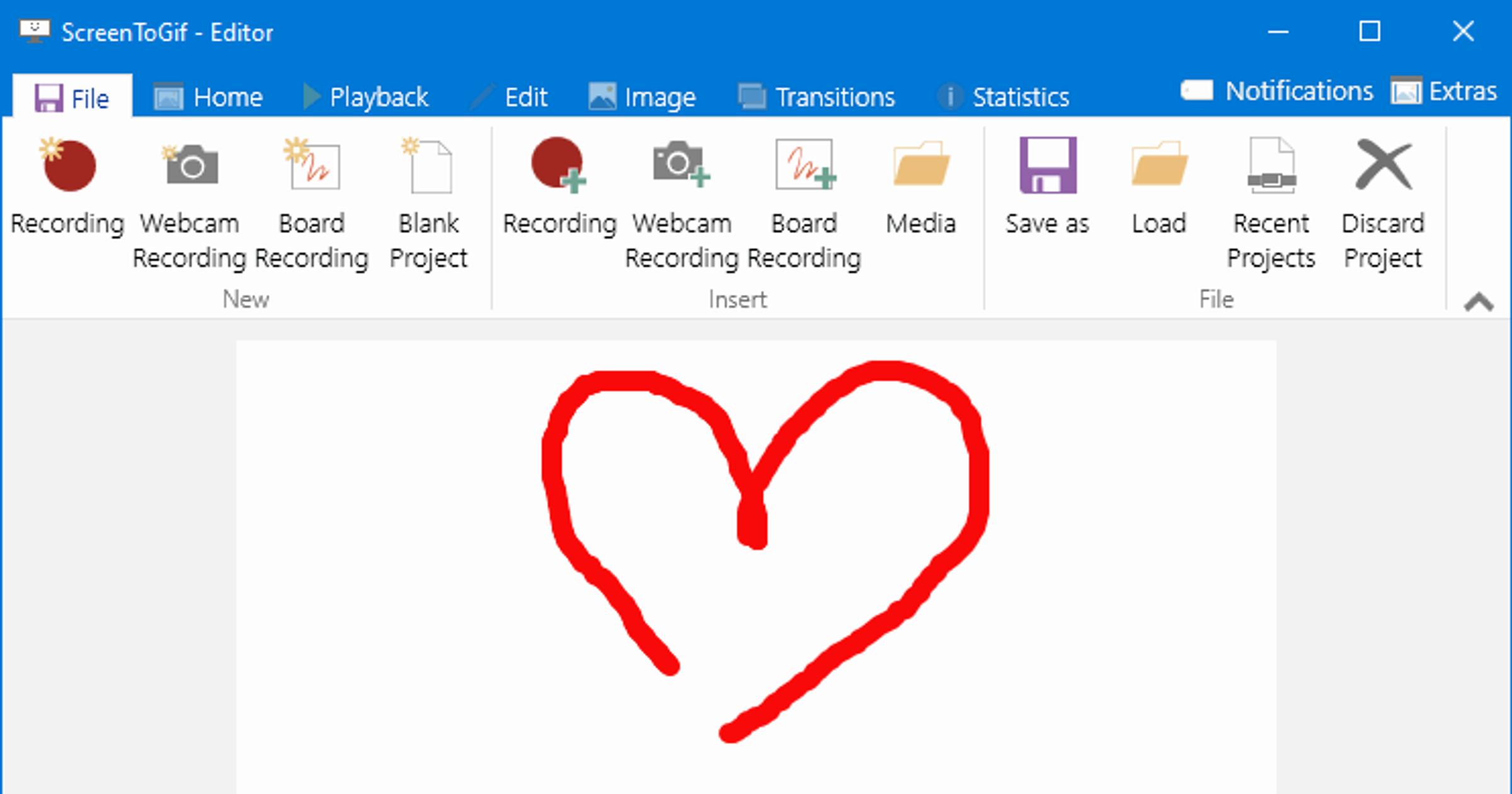
Captures from a selected screen region, a connected webcam, or the built-in sketchboard for hand-drawn animations. Each mode opens in a separate recorder window, letting you choose the right input source for the content you are creating.
Every recorded frame is accessible in the editor's timeline. Delete frames that show dead-time, adjust per-frame delay to control playback speed, apply visual effects, add text captions, and insert keystroke overlays before committing to any output format.
Exports to GIF, APNG, video, PSD with one frame per layer, and PNG image sequences. Each format has dedicated encoder settings in the export panel, so the same recording can produce a compressed GIF for a README and a higher-fidelity video for documentation.
Renders a keystroke indicator on screen during recording that shows which keys were pressed in real time. Useful for tutorial recordings where keyboard shortcuts are part of the workflow being documented.
Records hand-drawn animations from a built-in drawing canvas, letting you create animated sketches or annotate over a blank surface without a connected webcam or screen content. Output is treated the same as any other recording and can be edited in the frame editor.
Features
- Three recording modes
- Frame-by-frame editor
- Multiple export formats
- Keystroke display overlay
- Built-in sketchboard recorder
How to install
Download the Windows installer from GitHub Releases: https://github.com/NickeManarin/ScreenToGif/releases/latest
Recommended for this setup
Strengths
- Free with no subscription or account: MS-PL licensed and free to download and use with no account registration, subscription fee, or usage limit. The same applies to commercial use: a team documenting internal software has no licensing obligation beyond the MS-PL terms.
- Actively maintained since 2016: The repository has been in continuous development since 2016 and received its last commit in October 2026. With 27,887 GitHub stars and 2,382 forks, the project has a strong contributor community and a steady release cadence.
- Local-first with no cloud dependency: All recordings and edited files stay on the local machine. There is no account requirement, no upload step, and no cloud storage integration to configure. Files go where you put them, in the format you choose.
Trade-offs
- Windows only: Built on WPF and the .NET stack, ScreenToGif runs only on Windows. macOS and Linux are not supported. Teams with members on mixed operating systems will need a separate recording tool for non-Windows machines.
- Requires .NET 9 Desktop Runtime: .NET 9 Desktop Runtime must be installed separately on machines that do not already have it. This adds one step to the install process on fresh Windows machines and may require IT-managed deployment in enterprise environments.
- 328 open GitHub issues: The repository carries 328 open issues. Active single-maintainer projects at this scale often accumulate issues faster than they can be resolved; some edge cases or format-specific bugs may remain unaddressed for extended periods.
Tech stack
FAQ
Yes. ScreenToGif is licensed under the MS-PL (Microsoft Public License), which permits personal and commercial use at no cost. You can use it to create documentation for a commercial product, distribute the recordings, or use it internally at a company without any licensing fee.
No. ScreenToGif is built on WPF (Windows Presentation Foundation) and runs only on Windows. macOS and Linux are not supported. If your team includes non-Windows users, you will need a separate tool for those platforms.
.NET 9 Desktop Runtime or above is required. If it is not already installed on your machine, download it from Microsoft's .NET download page. The ScreenToGif installer or the Microsoft Store version will indicate if the runtime is missing.
ScreenToGif exports to GIF, APNG (animated PNG), video, PSD with one layer per frame, and PNG image sequences. Each format has dedicated encoder settings accessible from the editor's export panel.
Download the Windows installer from GitHub Releases at https://github.com/NickeManarin/ScreenToGif/releases/latest, install via Chocolatey with 'choco install screentogif', or install from the Microsoft Store. All three paths require .NET 9 Desktop Runtime.