Dirwise
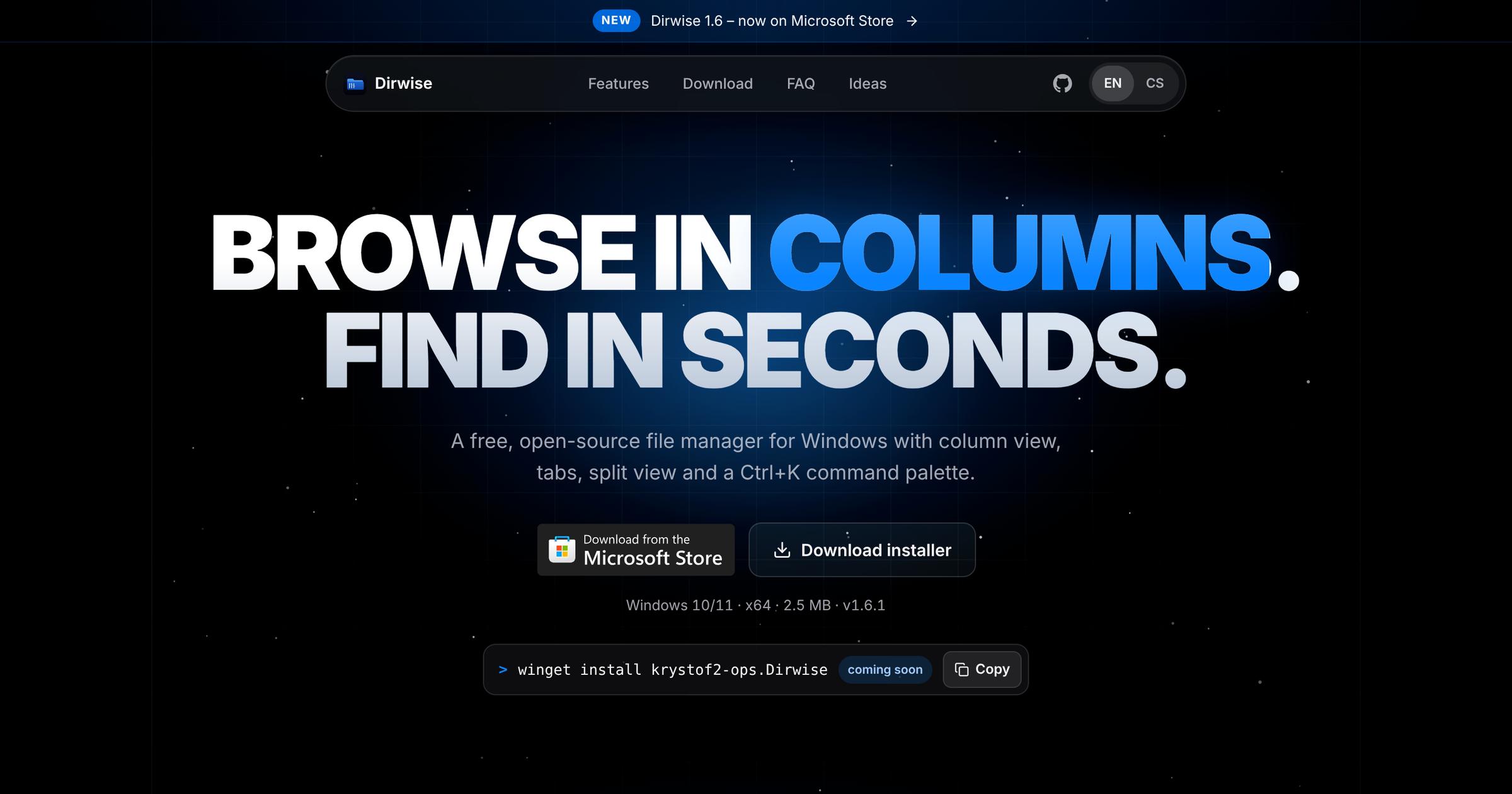
Keyboard-first file manager for Windows with column view and tabs.
Replaces Directory Opus, Xyplorer, Onecommander, Total Commander
Who it's for
Column view lets you navigate several directory levels simultaneously without switching windows. The Ctrl+K command palette lets you jump to any path or folder directly. Undo covers renames, moves, and copies, reducing the cost of reorganizing files.
Dirwise is Windows-only. If you work across Windows, macOS, and Linux regularly, a cross-platform file manager would better fit your workflow.
Split view with F5/F6 copy and move shortcuts makes transferring build artifacts, assets, or config files between two directories fast without dragging. Terminals (PowerShell 7 and Windows PowerShell) open in the current folder from More > Terminal.
If your workflow is primarily in the terminal, a terminal file manager or shell aliases may be more efficient than a GUI application.
Dirwise provides the column view, split panels, and command palette that are the core reasons users pay for tools like Directory Opus or Total Commander. It is free and MIT licensed, with no subscription or one-time purchase.
If you depend on features your current paid file manager provides that are not yet in Dirwise (such as FTP access, archive management inside the app, or scripting), switching may not be practical at this stage.
The problem
Windows File Explorer handles basic file browsing, but it provides no column view for navigating folder hierarchies, no command palette for quick access to folders and actions, and no built-in split view for copying files between two locations. Users who move files regularly, manage deep project directories, or work with multiple destinations in parallel find themselves opening multiple Explorer windows and manually dragging between them. For keyboard-driven workflows, the gap is clear: the navigation shortcuts and views that make file management fast are simply not part of File Explorer. Paid Windows file managers have addressed this space, but at a cost and without open source code.
How it works
Displays folder trees in Miller columns: each column shows one directory level, and selecting a folder opens the next column to its right. A preview panel shows file details, image thumbnails, and metadata for the selected item so you can inspect files without opening them.
Opens a searchable palette listing folders (Quick access, recent, open tabs, subfolders), actions, and tags. Type a path or a tilde to jump there directly. Press Ctrl+Enter to search files in the current folder. Frequently used commands appear first.
Each tab maintains its own folder history, view mode (Icons, List, Columns), sort order, and selection. Tabs display as rounded chips and can be dragged to reorder. Dropping files onto a tab moves them to that tab's current folder.
Ctrl+Shift+D splits the window into two independent panels side by side. F5 copies the selection to the other panel; F6 moves it. The divider can be dragged to resize and the ratio is saved between sessions. Tab switches between the two panels.
Space opens a full preview for images, PDFs, videos (with duration and resolution shown), audio, text files, source code, and rendered Markdown. Arrow keys step through files in the current folder. The preview column in Columns view shows a thumbnail and metadata without opening a separate panel.
Dirwise makes no telemetry requests. The only network activity is an optional daily check against the GitHub API to see if a new version is available; this can be turned off in More > Check for Updates. The GitHub release installs per user with no administrator rights required.
Features
- Column view with preview pane
- Ctrl+K command palette
- Tabs with independent history
- Split view for file operations
- Instant file preview
- No telemetry, no account required
Recommended for this setup
Strengths
- MIT license, free to use: Dirwise is published under the MIT license: the code is open source, free to use, and carries no restrictions on commercial or personal use. There is no license fee, no subscription, and no paid tier.
- Small install, no admin rights needed: The installer weighs under 3 MB, built with Tauri (Rust and WebView2), and installs for the current user only with no administrator rights required. There is no background service and no system-wide modification.
- Full Windows clipboard and drag-and-drop: Ctrl+C / Ctrl+X / Ctrl+V work with File Explorer, Outlook, and browsers. Files can be dragged in from Explorer or the desktop and dragged out to upload dialogs, Discord, or email. Undo and Redo cover the last 50 renames, moves, copies, new items, deletions, and tag changes.
- No cloud data, local storage only: Dirwise stores nothing remotely. Thumbnails and icon cache live in %LOCALAPPDATA%\dirwise. Tags, tabs, and Quick access pins are stored on the local machine. The privacy policy covers exactly one network request type: the optional version check.
Trade-offs
- Windows only, no other platforms: Dirwise runs on Windows 10 and 11 (x64) only. There is no macOS, Linux, or web version.
- Tabs but no multiple windows: Dirwise supports multiple tabs and a split view within one window, but it does not support opening a second independent window. Users who work with three or more separate folder contexts simultaneously will need to tab between them.
- Undo history does not survive closing the app: The undo history covers the last 50 operations within the current session only. A file overwritten by Replace cannot be recovered through undo. Closing the app clears the history.
- MTP devices open in Windows Explorer: Phones and cameras connected over MTP appear in the sidebar, but selecting them opens them in Windows Explorer instead of browsing them directly in Dirwise. MTP browsing is not natively supported.
Tech stack
FAQ
Yes. Dirwise is free and published under the MIT license. There are no ads, no account, no paid tier, and nothing to buy. The source code is on GitHub.
Yes, on Windows 10 and 11 (x64). The Acrylic blurred transparency effect requires Windows 11 22H2 or later; on Windows 10 and older Windows 11 versions that option is not available, but all other features work normally.
The GitHub installer is not code-signed, so SmartScreen displays a warning reading 'Windows protected your PC'. Click More info, then Run anyway to proceed. The Microsoft Store version installs without this warning and updates automatically through the Store.
No. Dirwise collects no telemetry and sends no analytics or crash reports. The GitHub version makes at most one network request per day to check the GitHub API for a new release; you can turn this off in More > Check for Updates. The Microsoft Store version makes no network requests of its own.
Yes. Bug reports and pull requests are welcome in the GitHub Issues tracker. The interface is available in English and Czech; UI texts live in translation files in src/i18n, so adding a new language starts with a new file there.