
TranslucentTB
Customizable Windows taskbar transparency tool
Replaces —
Who it's for
Users who put effort into their wallpaper and desktop layout but find the opaque taskbar breaks the visual flow use TranslucentTB to make the bar blend into the background.
People who prefer a distraction-free environment use a fully transparent taskbar so it recedes visually unless they actively move their cursor to it.
User does not use Windows as their primary OS.
Creators who record or stream their Windows desktop use a transparent taskbar to give their screen recordings a cleaner look without cropping the taskbar out in post.
The problem
Windows does not expose built-in options to make the taskbar fully transparent or to apply blur effects that blend with the desktop wallpaper. Users who want a cleaner desktop aesthetic or a more immersive look are stuck with the default opaque or lightly-frosted taskbar that Windows ships with.
How it works
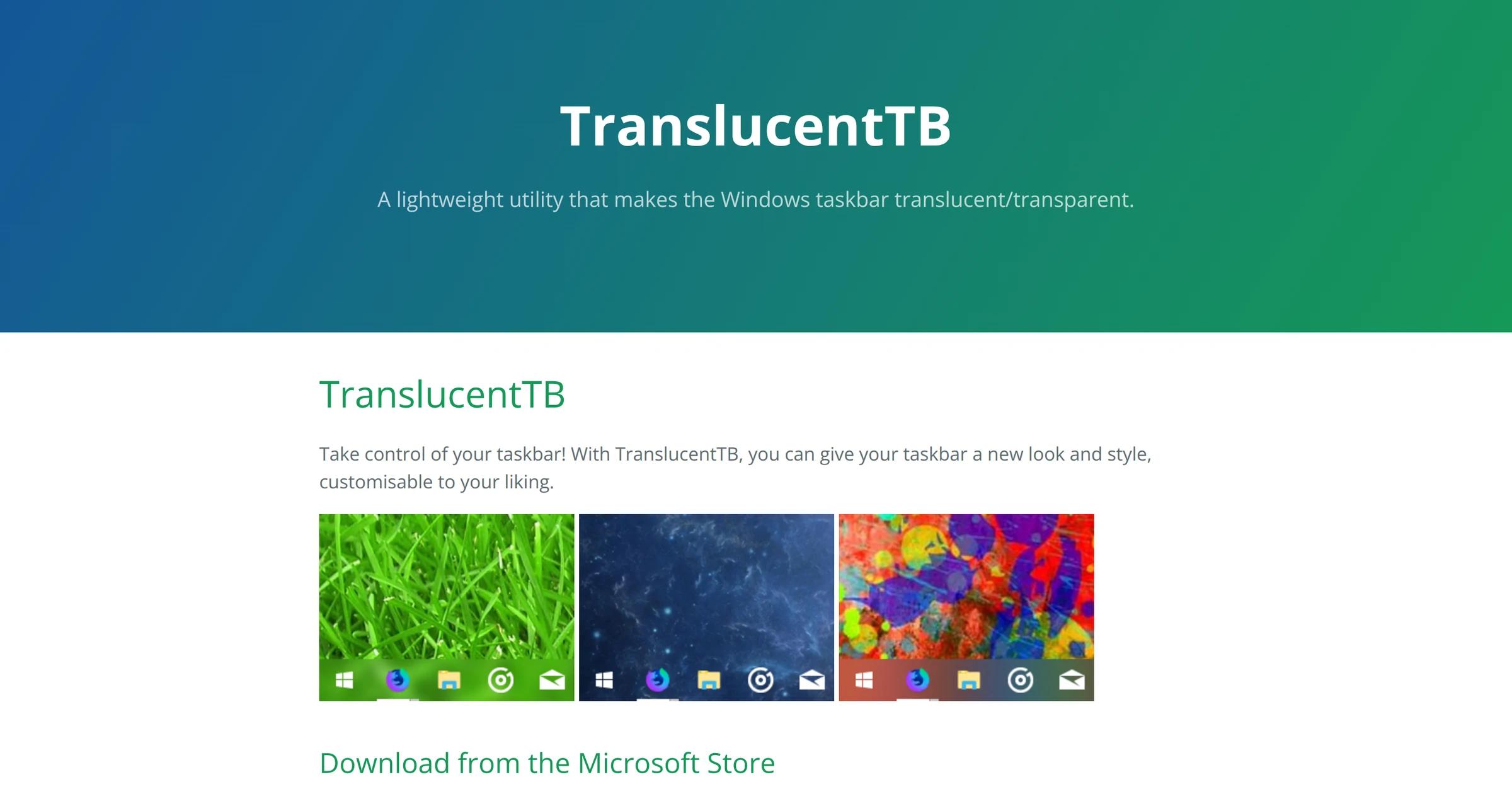
Set the taskbar to fully transparent so your wallpaper shows through without obstruction, or choose a translucent mode for a semi-transparent look.
Apply an acrylic blur that softens the content behind the taskbar, giving it a frosted-glass appearance consistent with Windows fluent design.
Configure separate visual styles for different system states: when the desktop is clear, when a window is maximized, when the Start menu is open, and when Task View is active.
TranslucentTB lives in the system tray and applies settings automatically on startup, staying out of the way once configured.
Available as a free download from the Microsoft Store, making installation straightforward and updates automatic.
Features
- Transparent and translucent modes
- Acrylic blur effect
- State-based appearance rules
- System tray integration
- Microsoft Store distribution
Recommended for this setup
Strengths
- Lightweight footprint: The utility is designed to be minimal, running quietly in the background without measurable impact on system performance.
- Granular per-state control: Rather than applying one fixed style, you can assign different taskbar appearances to different system states, so the bar adapts as you work.
- Zero-configuration startup: Once installed from the Microsoft Store, TranslucentTB launches automatically with Windows and applies your saved settings without any manual steps.
Trade-offs
- Windows only: TranslucentTB is built specifically for the Windows taskbar. It has no equivalent functionality on macOS or Linux desktop environments.
- Limited to taskbar customization: The tool's scope is the taskbar appearance only. It does not extend to other shell elements such as the Start menu, Action Center, or window chrome.
- Dependent on Windows shell internals: Because it hooks into Windows shell rendering, its behavior can be affected by major Windows updates that change how the taskbar is drawn.
Tech stack
FAQ
TranslucentTB is available as a free download from the Microsoft Store. Search for TranslucentTB in the Store app or visit the project's website for a direct link.
TranslucentTB supports Windows 10 and Windows 11. The available visual effects, including acrylic blur, depend on which effects the installed version of Windows supports.
The utility is explicitly described as lightweight. It runs as a small tray application and is designed to have minimal impact on system performance.
Yes. TranslucentTB lets you configure separate taskbar appearances for when the desktop is clear, when a window is maximized, when the Start menu is open, and when Task View is active.
Yes. Once installed, TranslucentTB launches at startup and applies your saved settings automatically, so you do not need to run it manually each session.