Kabuk
Tiling desktop shell for Windows 11 with bars and OLED wallpapers
Replaces Displayfusion, Actual Window Manager
Who it's for
Users who have lived in Hyprland, i3, or sway and switched back to Windows for games, Office, or professional tools find Kabuk's keyboard-first tiling and bar familiar. Win+arrows to move focus, Win+1-9 for workspaces, Win+Enter for a drop-down terminal, and Win+R for the launcher cover most of the Hyprland muscle memory.
You are willing to run Linux as your primary system. Kabuk solves the need-Windows-but-want-Hyprland situation; if you have no Windows dependency, there is no reason to leave Linux.
OLED panels are at risk from fixed bright elements, and the Windows taskbar is exactly that. Kabuk puts its own bar on every monitor that shifts slightly, dims when idle, and uses a palette calibrated for OLED. The gallery holds 42 designs (wallpapers and screen savers), all built to be predominantly dark.
You use an IPS or LCD panel. Burn-in prevention is a first-class feature of Kabuk's design; if it is not a concern for your display, the OLED features are still usable but the tradeoff they represent does not apply to you.
Kabuk's launcher (Win+R) covers apps, open windows, files, bookmarks, and inline math without reaching for a mouse. Dwindle tiling keeps the terminal and editor in a fixed layout as new windows open. The drop-down terminal (Win+Enter) is always one keypress from any workspace.
You prefer a traditional desktop with a taskbar and do not use keyboard shortcuts for window navigation. Kabuk hides the taskbar and puts its own bar in its place, rather than supplementing it.
Kabuk detects full-screen programs and clears within under a second. The bar hides, tiling pauses, hooks turn off, and GPU priority drops. When the game closes, the layout returns exactly as it was. Kabuk loads no code into other processes and installs no global DLL hooks; the site describes it as anti-cheat friendly.
You play full-time with no other work on the same machine. Kabuk's value is managing many windows across a workday; on a dedicated gaming rig with no productivity use, a standard taskbar is simpler.
The problem
Setting up a tiling workflow on Windows 11 means assembling tools from multiple independent projects. You need a window manager, a custom taskbar replacement, a launcher, and an animated wallpaper engine, each with its own configuration format and update schedule. When Windows updates, any of these can break and leave the desktop in a half-working state. OLED laptop owners have another concern. The standard Windows taskbar is a fixed-brightness bar occupying the same screen region every session, which raises burn-in risk over time. Gamers using third-party shell components discover that many tools inject code into other processes, which trips anti-cheat software and forces a choice between a usable desktop setup and playing online games.
How it works
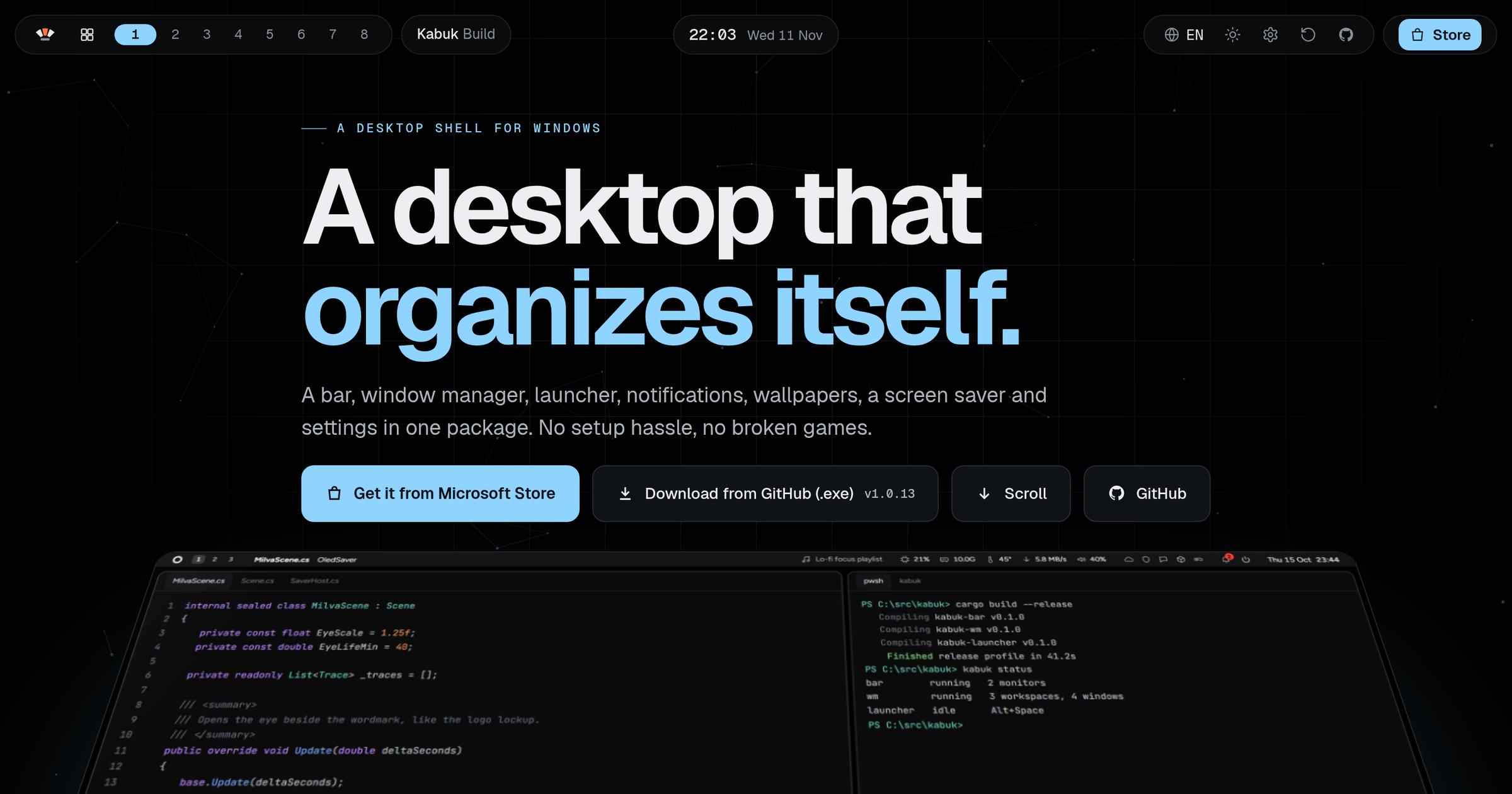
Each monitor gets its own bar showing workspaces, pinned and running apps (with right-click jump lists), system tray, clock, volume, media controls, and live readings for CPU, RAM, GPU temperature, and network speed. Any module can be turned off individually. The bar can be blurred, solid, or transparent.
Windows tile automatically as they open using dwindle layout (each new window splits the remaining space). Switch to master-and-stack with Win+Y. Any workspace can be set to all-floating. Dialogs, splash screens, and windows that cannot be resized float automatically to avoid breaking the layout.
Win+R opens a launcher for apps, open windows, files, bookmarks, and an inline calculator. Win+Shift+A opens every installed app as a full-screen grid. Search uses fuzzy matching with language-aware character rules for Turkish and English.
Animated wallpapers run on the GPU and are capped at 30 fps. They pause automatically when the desktop is covered by windows, during full-screen games, and while running on battery. The gallery holds 42 designs in total: 22 wallpapers (animated and static) and additional screen savers. Animated wallpapers use colors from the active look and update when you change accent or mode. Static wallpapers shift slowly to prevent pixel lock-in.
Kabuk loads no code into other processes and installs no global DLL hooks. When a full-screen program covers a monitor, the bar disappears and tiling pauses. Keyboard and mouse hooks are disabled, GPU priority is lowered, and notifications queue silently until the game exits. The site describes Kabuk as anti-cheat friendly.
A separate watchdog process monitors Kabuk at all times. If the shell crashes or is killed in Task Manager, the watchdog restores every hidden window and the taskbar within two seconds and restarts Kabuk. If the bar stops responding for 15 seconds, the watchdog ends and restarts it. Ctrl+Alt+Shift+End is a hardcoded restore key that always works.
Features
- Per-Monitor Bar with Live System Stats
- Dwindle and Master-Stack Tiling
- Keyboard Launcher
- OLED-Safe Animated Wallpapers
- Game-Safe Architecture
- Crash Recovery via Watchdog
How to install
Download the signed Windows installer from GitHub Releases: https://github.com/Milvasoft/kabuk/releases/latest
Recommended for this setup
Strengths
- No Code Injected Into Other Processes: Most third-party Windows shells inject code into other processes to intercept window events. Kabuk runs all hooks inside its own process and uses Windows' documented event APIs. No code is loaded into other processes, and no global DLL hooks are installed. The site describes Kabuk as anti-cheat friendly.
- One Installer, Six Features, No Config Pile: The signed installer puts a complete desktop shell on Windows 11 in one pass: bar, tiling, launcher, wallpapers, screen saver, and settings. No separate setup for each component, no TOML files required to get started, though the full config file is available for power users who want it.
- OLED Burn-In Prevention Built In: The bar shifts by a pixel or two on a slow cycle and dims when idle. Animated wallpapers are designed to be predominantly dark, pause while the desktop is covered, and are off by default on battery. Every look in every accent passes a 4.5:1 contrast check, so Kabuk never applies a shade it cannot read back.
- State Saved Before Every Change: Every window Kabuk hides, every taskbar change, and every workspace assignment is written to a state file before the change is made. If Kabuk exits for any reason, the state file is what the watchdog uses to restore everything. The `kabuk` CLI's restore command does the same from any terminal without needing Kabuk to be running.
Trade-offs
- Windows 11 Only: Kabuk targets Windows 11 and does not support Windows 10 or earlier. The WebView2 dependency for the settings app ships with Windows 11, but the Win32 APIs it uses for the bar and tiling are Windows 11 specific. Users on Windows 10 have no supported path.
- Early-Stage Project with 4 GitHub Stars: Kabuk was created in October 2026 and has 4 GitHub stars and no forks. The README is written from a solo-maintainer perspective. There are no open issues and no community contributions yet. Users who need a large active community for support should look elsewhere.
- Microsoft Store Version Has Fewer Capabilities: The Store version cannot set system cursors, the screen saver, or Windows' accent colors because Store packages are not allowed to write those settings. Users who want all features should install from GitHub Releases.
Tech stack
FAQ
No. The installer runs without administrator rights and installs to %LOCALAPPDATA%\Programs\Kabuk. No system directories are written and no driver or service is installed. The Microsoft Store version does not require any additional permissions beyond a standard Store install.
A watchdog process runs alongside Kabuk and monitors it. If Kabuk crashes or is killed in Task Manager, the watchdog restores every hidden window and the original taskbar within two seconds and then restarts Kabuk. If Kabuk stops responding for 15 seconds, the watchdog ends and restarts it. After three restarts within a minute, the watchdog stops restarting and notifies you. Ctrl+Alt+Shift+End from any state manually restores everything and exits Kabuk.
Yes. Kabuk loads no code into other processes, runs its keyboard and mouse hooks entirely inside its own process, and uses Windows' documented APIs. The site describes it as anti-cheat friendly. When a game enters full-screen, Kabuk disengages: the bar hides, tiling pauses, and keyboard and mouse hooks turn off. The transition takes under one second.
No. The README and PRIVACY.md both state that Kabuk collects nothing. There is no account, no telemetry, and no analytics. The only outbound connections are the update check (when you trigger it from Settings) and any AI connection you configure yourself using your own key.
The GitHub version (installed via kabuk-setup.exe) has full capabilities including setting system cursors, the screen saver, and Windows' accent colors. The Store version cannot write those settings because Store packages are restricted from doing so by the platform. Settings, tiling, bars, launcher, and wallpapers work identically in both. The Store version updates automatically; the GitHub version checks for updates from Settings › About.