
DriverStoreExplorer
Windows driver store manager for IT admins and power users
Replaces —
Who it's for
Lists and batch-removes old driver versions across workstations where hardware has changed over time. The CSV export supports auditing before deletion, and the export feature backs up drivers before removal. Works on live machines without scripting.
If you need to push driver updates or install new driver packages from a vendor across a fleet, DriverStoreExplorer does not provide a deployment mechanism. Use a tool with centralized driver distribution instead.
Clears out old driver versions after a development cycle, preventing conflicts when retesting hardware. The sortable table with version and date columns makes it easy to identify test packages by date and remove them without affecting other devices.
If you only need to roll back one driver to a previous version, Device Manager's built-in rollback feature handles that without a third-party tool.
Connects to an unmounted Windows image to audit the driver packages staged during the build process. Administrators can remove drivers before the image is deployed to production hardware, reducing image size and cleanup work after deployment.
Auto-selection of old and unused drivers does not work on offline images because device presence cannot be established. Manual selection is required.
The problem
The Windows driver store accumulates third-party driver packages every time a device is installed or Windows Update stages a newer version. On systems that have cycled through many hardware generations or received frequent driver updates, the store can hold dozens of redundant packages consuming hundreds of megabytes of disk space. Windows provides no built-in GUI to inspect or selectively remove these packages: Device Manager shows attached devices, not the full package inventory, and removing a staged driver requires running pnputil at an administrator command prompt, one package at a time, by INF filename. For IT administrators managing many workstations or developers who test hardware drivers regularly, this becomes a recurring maintenance task with no good tooling. The choices are manual pnputil invocations, scripted cleanup with limited visibility, or paid driver utilities that conflate cleanup with automatic driver download, adding a subscription cost and unnecessary scope to what is fundamentally an auditing and deletion task.
How it works
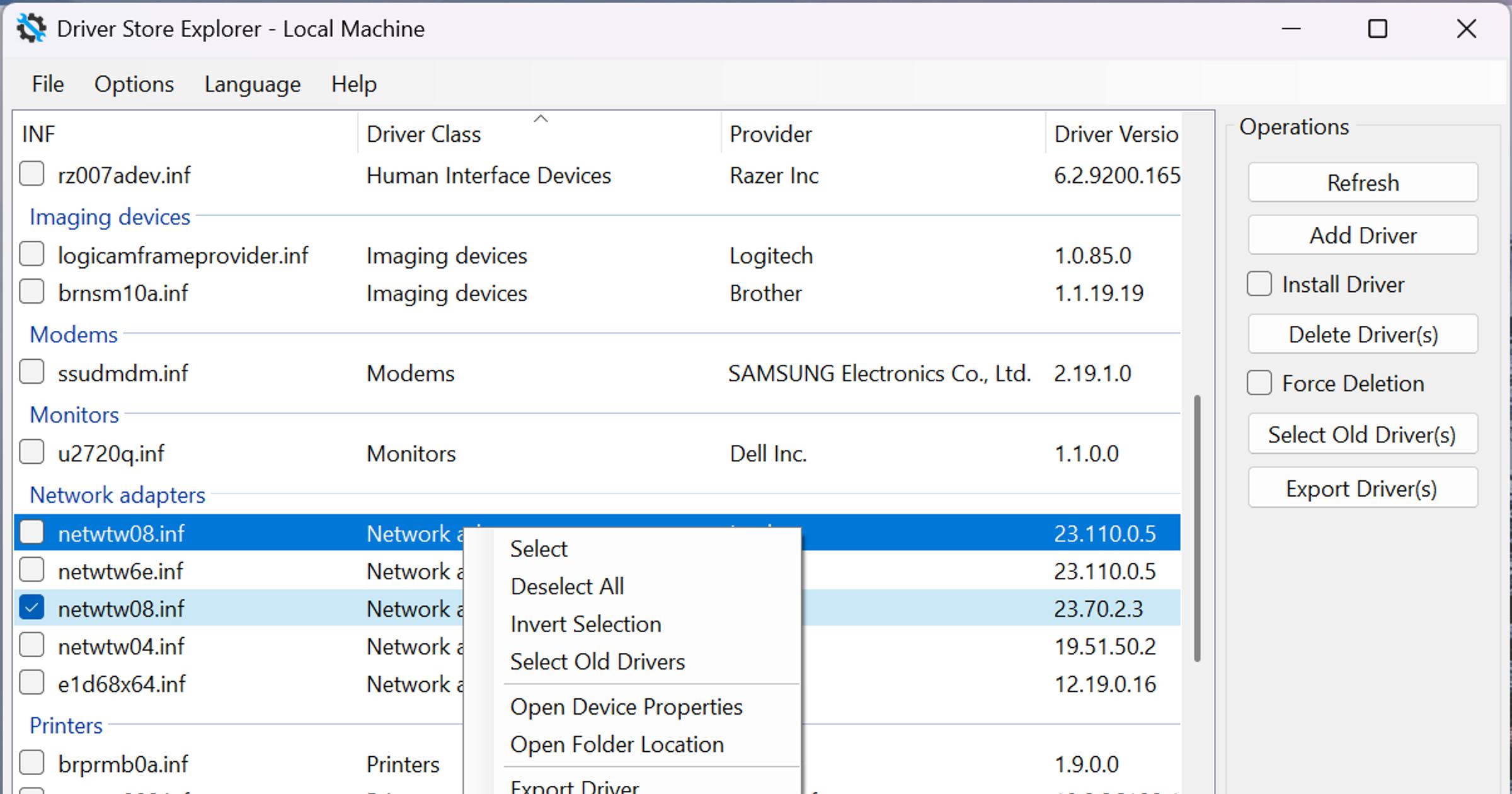
Lists every third-party package in the Windows driver store with its INF name, provider, class, version, date, size, and device association. Columns are sortable and groupable; a live search box filters the list in real time without loading a new view. CSV export is available for offline analysis.
Select multiple packages and delete them in one operation. Two automatic selection modes help narrow the list: Select Old Driver(s) marks packages with a newer version present; Select Unused Driver(s) marks packages with no currently associated device. Both show a warning before changing the selection; the tool skips boot-critical drivers unless you explicitly enable that in Options.
Exports selected or all driver packages to an organized folder structure before removal. This lets you back up drivers for hardware that may be reconnected later, without relying on Windows to re-download them. The backup clears the unused-driver warning for covered packages, giving you a clear record of what was preserved.
Operates on unmounted Windows image files in addition to the running system. Administrators can audit and clean driver stores in offline images during provisioning, before deployment. Auto-selection of old and unused drivers is disabled for offline stores because device presence cannot be determined, but manual selection still works.
Chooses between three Windows driver management backends. The native Windows API is the default and the fastest for live systems. DISM is used for offline image work. PnPUtil is the in-box Microsoft command-line tool wrapped with a GUI. All three support the same feature set through the interface; auto-detection picks the right one based on the target.
Features
- Driver package browser with metadata columns
- Batch delete with old and unused auto-selection
- Driver export and backup before removal
- Offline Windows image support
- Multiple backend APIs: Windows API, DISM, PnPUtil
How to install
Download the portable ZIP or signed installer from GitHub Releases: https://github.com/lostindark/DriverStoreExplorer/releases/latest
Recommended for this setup
Strengths
- GPL-2.0 license with no paid tiers or subscription: Distributed under GPL-2.0, so the tool is free to download, run, and inspect the source. There are no paid tiers, no account requirements, and no telemetry. Driver Booster and Driver Easy both require a paid subscription for their full feature sets; DriverStoreExplorer has no paywall.
- Surgical control over what Windows already has staged: Operates on the driver store itself rather than hunting the internet for new driver versions. This makes it the right tool for cleanup and auditing tasks: you see exactly what is staged, delete specific packages, and export what you want to keep. Commercial driver utilities bundle cleanup with automatic download, adding scope and cost to a task that does not require them.
- Active development since 2016 with 12,148 stars and 18 open issues: The repository has been maintained since 2016, reached 12,148 GitHub stars, and had its last commit on 2026-11-15. The low open issue count (18) relative to its install base indicates a stable codebase. Code-signed releases are provided through SignPath, a recognized open source code-signing provider.
Trade-offs
- Windows-only, no cross-platform or remote support: DriverStoreExplorer is a Windows desktop application built in C# and targets the Windows driver store API. It does not run on macOS or Linux. There is no web interface or remote management capability; the tool must be run directly on the machine whose driver store you want to manage.
- Driver cleanup carries real data-loss risk: The README prominently warns that improper use can prevent Windows from booting or cause device functionality loss. Force-deleting an in-use driver can destabilize the system. The Select Unused Drivers mode may flag antivirus, network, or printer drivers that are genuinely needed. Backing up drivers before deletion is essential and the tool expects users to understand Windows driver internals.
Tech stack
FAQ
It is safe when used with an understanding of Windows driver internals. The README warns that deleting the wrong driver can prevent Windows from booting or cause devices to stop working. The recommended approach is to export (back up) drivers before deleting them, avoid force-deleting in-use drivers unless necessary, and not remove boot-critical drivers unless you have enabled that option deliberately.
Standard deletion removes a driver package from the store if it is not currently in use by an active device. Force deletion removes it even if Windows considers it in use. Force deletion is available for drivers that standard removal cannot clear, but it may not work for print drivers and carries additional risk. Use it only when standard deletion fails and you have confirmed the driver is safe to remove.
No. It manages only the packages already staged in the Windows driver store. It does not connect to the internet, does not query driver databases, and does not install new driver versions from external sources. If you need to find or update drivers, you need a separate tool. DriverStoreExplorer's purpose is auditing and cleaning what Windows has already staged locally.
Windows 7 or newer and .NET Framework 4.7.2 or newer. Administrator privileges are required to add, remove, or export drivers. The tool can browse the driver store without administrator rights, but write operations require elevation.
The recommended method is winget: run winget install lostindark.DriverStoreExplorer in a command prompt, then launch it with the rapr command. Alternatively, install via Scoop by adding the extras bucket. If you prefer a portable install, download the ZIP from the GitHub Releases page, extract it, and run Rapr.exe directly. No installer is required; the tool runs from the extracted folder.