ApolloShell
macOS 26 desktop shell with sidebar, dock, launcher and dashboard
Replaces —
Who it's for
Users coming from tiling window managers or desktop shells on Linux (Hyprland, Waybar, the Caelestia shell ApolloShell was inspired by) find this the closest macOS equivalent: a persistent sidebar with a dock, widget pages, and CSS theming from a single file. It brings a dotfiles-style workflow to the Mac.
You are on macOS Sequoia or earlier; ApolloShell requires macOS 26 Tahoe. Also skip if you need a fully notarised, App Store-available app with no first-launch security prompts.
The ⌥Space launcher keeps frequently used apps at the top of results, and the control centre handles common toggles (Wi-Fi, dark mode, keep-awake) in one panel. The dashboard puts calendar events and system stats one shortcut (⌃⌥D) away without covering what you are working on.
A launcher like Raycast already covers your app-switching needs and you have no use for a persistent sidebar or dashboard; ApolloShell adds more UI surface than you need for the launcher-only case.
ApolloShell's CSS theming lets you change the entire shell's colour palette, fonts, and corner radii by editing a single file; the tokens and their effect are documented in docs/THEMES.md in the repository. Three bundled themes (Afterglow, Marble, Tide) provide starting points.
Your customization goals are limited to changing the macOS accent colour or Dock position; System Settings already covers those without installing a full shell.
The problem
Mac power users who want a customizable desktop face a fragmented set of tools: one paid app for launching, another for dashboard widgets, macOS's own Dock offering little flexibility. Each tool comes with its own subscription, permission requests, and settings interface. Getting a persistent sidebar with a custom dock, quick-access widgets, and a unified control centre on macOS has meant paying for multiple separate commercial apps or doing without. The underlying constraint is that macOS ships the Dock, Spotlight, and Notification Centre as locked system components. You can hide the Dock or pin apps to it, but you cannot move it to a sidebar panel, embed it next to clock and calendar widgets, or theme the whole desktop with a single CSS file. Users coming from Linux desktop environments know what that level of control feels like; on macOS, nothing built-in comes close.
How it works
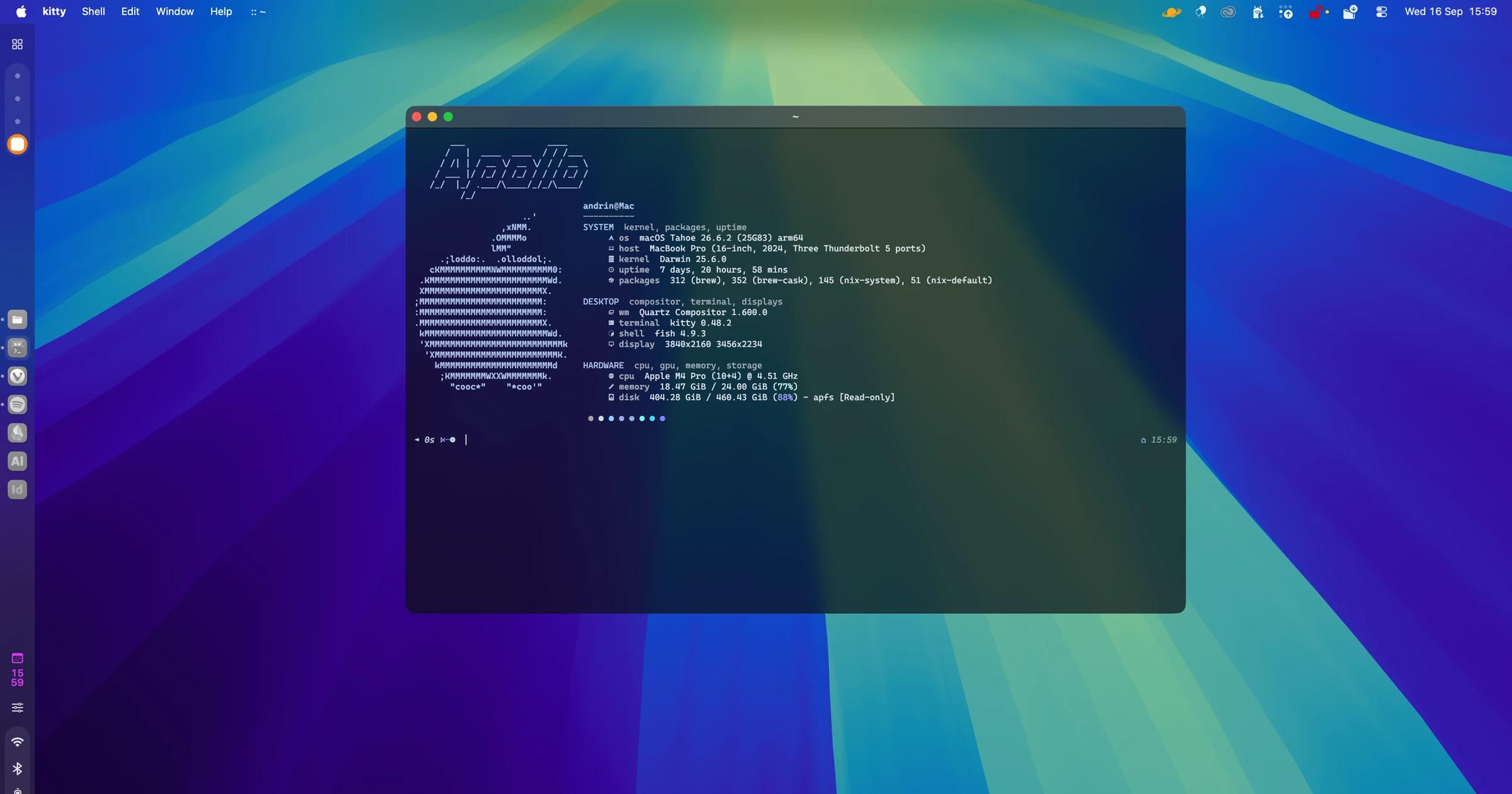
The left-edge sidebar holds Spaces navigation, a clock, status icons, power controls, and a full-featured dock for pinned and running apps. Right-click menus, drag and drop, and notification badges work as they do in Apple's own Dock. Blocks can be added, removed, and reordered from Nexus, ApolloShell's settings app, or you can start from a preset layout.
A panel from the top edge holds pages of widgets you place and resize: weather from Open-Meteo or MET Norway, calendar events, system resource gauges, now-playing controls, and a timer. Each page is a grid; widgets resize independently. Open it with ⌃⌥D or click the top edge.
Press ⌥Space to open a quick-launch bar. Apps you use most often appear first; type to narrow results, press Return to open. The trigger shortcut and sort behaviour can be changed in Nexus → Keyboard Shortcuts.
A compact panel in the bottom-right corner (⌃⌥U) for quick-action toggles: keep-awake mode, sound controls, Wi-Fi, dark mode, Night Shift, a colour picker, and your own custom buttons. It stays out of the way until called and dismisses automatically.
A theme is a single CSS file in ~/Library/Application Support/ApolloShell/themes with --apollo-* tokens for colours, gradients, fonts, corner radii, and sidebar width. Saving the file applies it immediately with no restart needed. Three bundled themes (Afterglow, Marble, Tide) ship with the app.
The .dmg build checks for updates once a day and installs the new version the next time the app quits; Nexus offers a Restart now button when an update is waiting. The Homebrew install runs brew upgrade apolloshell in the background and signals Nexus when done. Both behaviours can be turned off in Nexus → About.
Features
- Sidebar with configurable blocks
- Dashboard with widget pages
- App launcher
- Control centre panel
- CSS theming with live reload
- Auto-updating without user action
How to install
Install via the Homebrew tap on macOS 26 Tahoe or later.
brew trust --tap Silvertree2010/apolloshell
brew tap Silvertree2010/apolloshell
brew install apolloshell
Or download the `.dmg` from GitHub Releases: https://github.com/Silvertree2010/ApolloShell/releases/latest
Recommended for this setup
Strengths
- Native Swift with no browser-engine overhead: Written in Swift 6.2 with AppKit and SwiftUI, ApolloShell carries no Electron or embedded browser overhead. It starts fast, uses the system's native rendering, and handles Dock menus, drag and drop, and system keyboard shortcuts the way a Mac app is expected to.
- No accounts, no telemetry, no subscription: ApolloShell requires no sign-in and collects no analytics. The only network traffic is weather data, sent to the provider you pick (Open-Meteo, MET Norway, or wttr.in). Crash reports are opt-in: the app shows you the report before asking whether to send it.
- CSS theming at the whole-shell level: Most macOS customization apps provide appearance options through a GUI preference screen with a fixed set of choices. ApolloShell gives you a CSS file with documented --apollo-* tokens for colours, fonts, corner radii, gradients, and sidebar width, applied live on save.
- Self-contained install with auto-updates: The .dmg build updates itself silently using Sparkle. The Homebrew tap keeps the app under package management. Neither path requires a developer account, Xcode, or build tools; the source build also works with just the macOS Command Line Tools.
Trade-offs
- Relies on private macOS APIs: ApolloShell uses undocumented macOS interfaces for Spaces, fullscreen detection, Night Shift, dark mode, window lists, and now-playing information (SkyLight, CoreBrightness, HIServices, MediaRemote). The README warns that a macOS update can break parts of the app without notice. Features that depend on a missing API are disabled at launch rather than crashing, but breakage after a system update is a known risk.
- Requires macOS 26 Tahoe or later: The minimum supported OS is macOS 26 Tahoe. Users on macOS Sequoia or earlier cannot run ApolloShell; the app targets APIs that only exist in Tahoe.
- Early release, not notarised, no App Store path: The README describes this as an early release. The app is not notarised (notarisation requires a paid Apple developer account), so macOS blocks the first launch and you must approve it in System Settings or run an xattr command. It cannot appear in the Mac App Store because of its use of private APIs.
- Keep-awake feature requires a one-time sudo write: The keep awake with lid closed feature writes a sudoers rule to /etc/sudoers.d/apolloshell that permits two specific pmset commands. This is a one-time setup that can be removed in Nexus, but it does require admin access on first use.
Tech stack
FAQ
Not by default. ApolloShell adds its own dock inside the sidebar, and Nexus → General can hide Apple's Dock while ApolloShell runs. The system Dock reappears whenever ApolloShell quits. You can run both simultaneously or use ApolloShell's dock exclusively.
The app is not notarised because notarisation requires a paid Apple developer account. macOS blocks the first launch; approve it in System Settings → Privacy & Security by clicking Open Anyway, or run xattr -dr com.apple.quarantine /Applications/ApolloShell.app in Terminal. The source code is public and licensed AGPL-3.0, so you can inspect what you are running. This is a common situation for small open source Mac projects.
It may. ApolloShell uses undocumented macOS interfaces for Spaces, fullscreen detection, Night Shift, now-playing, and window lists. The README warns that a macOS update can break parts of the app. When an API is missing at launch, ApolloShell disables that feature rather than crashing, but occasional breakage after a system update is a known risk of building on private interfaces.
Yes. The build requires only the macOS Command Line Tools; Xcode is not needed. Clone the repository, run scripts/setup-signing.sh once to configure code signing, then run ./build.sh. Full build and testing instructions are in CONTRIBUTING.md in the repository.
AGPL-3.0 covers both personal and commercial use at a desk: you can run it in a work environment with no licensing fees and modify the source code freely. The AGPL restriction applies when you distribute modified copies or run a modified version as a network service others access; in those cases you must release your source changes under AGPL-3.0. For typical desktop use, there are no restrictions.