TwinDesk
One mouse and keyboard for Mac, Windows, Linux and Android. No cloud.
Replaces Synergy, Sharemouse
Who it's for
TwinDesk eliminates the second mouse and keyboard and lets apps from one computer open in windows on the other. Files and clipboard sync without a cable or cloud service. The full feature set works between any OS combination, not just Mac-Windows.
You only need remote access over the internet, not physical adjacency. A dedicated remote desktop tool is simpler for that use case.
Calls ring on the screen, can be answered without touching the phone, and with Bluetooth active the computer handles audio too. Texts are readable and replyable from the keyboard. No account or Microsoft ecosystem required.
You use an iPhone. TwinDesk only supports Android on the phone side.
One TwinDesk install per machine replaces a hardware KVM: mouse, keyboard, clipboard, and files all move between machines. An old laptop or tablet can become an extended display.
Your machines are in different physical locations and you need remote access rather than local adjacency. TwinDesk's primary design is for devices within reach.
TwinDesk sends no data to any server. All device traffic is peer-to-peer and encrypted. No account creation is required, and there is no telemetry by default. The GPL-3.0 license allows full source inspection.
You need a managed cloud-based phone link service with automatic sync and backup to manufacturer servers. TwinDesk deliberately has no cloud component.
The problem
Working across multiple computers with one mouse and keyboard requires either buying duplicate peripherals or installing a software KVM tool. Most tools stop there. They share the mouse and keyboard between desktop machines but ignore the phone sitting next to them. The phone creates its own friction. When it rings, you pick it up. When you photograph a document, you email it or use cloud storage to move it to the computer. Most phone-link software stops at notifications or requires both devices to be in the same manufacturer's ecosystem. For anyone running a Mac with an Android phone, or a Windows machine without Microsoft Phone Link support, there is no off-the-shelf tool that makes the phone a working part of the desk.
How it works
Push the pointer off the screen edge and keep typing on the other computer. Trackpad gestures carry over on macOS, keyboard shortcuts remap between Ctrl and Command, and a Scroll Lock key locks the pointer to one screen. Works between any combination: Mac to Windows, Linux to anything.
Answer, decline, mute, and end calls on any paired Mac, Windows, or Linux computer. Read and reply to SMS with a keyboard. Call history and contacts are accessible from the Calls page. With Bluetooth connected, the computer handles audio so you talk and listen from the desk.
Drag a file off the screen edge and drop it onto the other machine. Or copy with Ctrl+Alt+C and paste with Ctrl+Alt+V into any app, including chat windows. Files in transit show live progress on both sides. Shared folders appear as network drives on the other device.
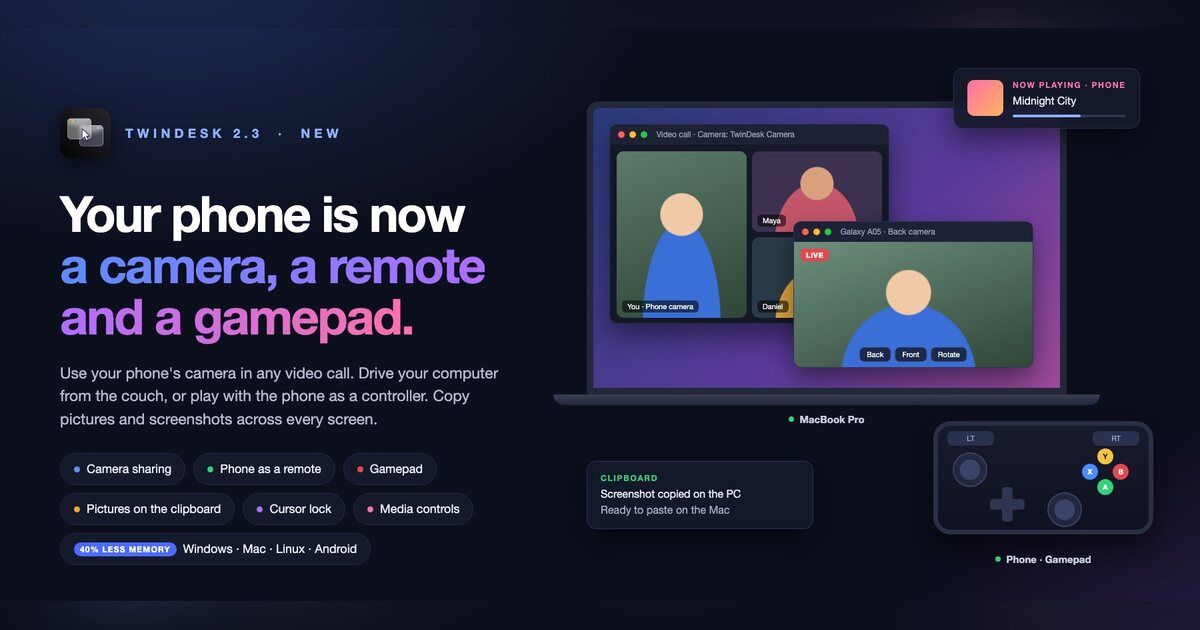
TwinDesk installs a virtual camera driver on first use, making the phone's camera available as TwinDesk Camera in any video call app. On Linux it uses v4l2loopback; on macOS it hooks into OBS Virtual Camera. The same approach works with a paired computer's camera too.
Connect multiple computers and a phone simultaneously on a peer-to-peer map. Move the pointer from a PC to a Mac to a Linux laptop in one sweep. Clipboard and notifications are pooled across every device. Mesh is in beta on Windows, Mac, and Linux.
Devices pair over the local network by default, but also connect over USB, Bluetooth, or a direct Wi-Fi link the app creates on demand. No router is needed, no cloud relay is involved, and no account is required.
Features
- One mouse and keyboard across every platform
- Phone calls and texts on the computer
- File drag-and-drop between screens
- Phone camera as a webcam in Zoom, Teams, and Meet
- TwinDesk Mesh: all devices connected at once (beta)
- No shared network required for any connection mode
How to install
Install TwinDesk on macOS with Homebrew or download the native installer for Windows, Linux, or Android from GitHub Releases: https://github.com/InukaAsith/TwinDesk/releases/latest
brew install --cask inukaasith/twindesk/twindeskRecommended for this setup
Strengths
- GPL-3.0, free, no subscription, no account: TwinDesk is free under the GPL-3.0 license. There is no paid tier, no per-seat pricing, and no account creation. All features are available on install with no usage cap or cloud service dependency.
- Android phone treated as a full peer device: Calls, texts, photos, files, screen sharing, camera, and remote control are all available between the phone and any paired computer. This goes well beyond notification mirroring: the phone's calls are answered on the computer, its photos are browsable in a panel, and its storage mounts as a network drive.
- No shared router needed for any connection mode: TwinDesk 2.1 added Bluetooth and Wi-Fi Direct connections, so devices pair even without shared Wi-Fi. A USB cable connection is also supported. This matters for travel, public networks, or setups where a shared router is not available.
Trade-offs
- App is unsigned; first launch requires a manual security step: TwinDesk lacks a paid Apple Developer ID and Windows code-signing certificate. On macOS, opening the app the first time requires clicking Open Anyway in System Settings > Privacy & Security. On Windows, SmartScreen shows a protected PC dialog and requires clicking More info > Run anyway. The Homebrew install on macOS avoids this warning.
- GitHub repository created October 2026; 24 open issues: The GitHub repository was created in October 2026 and has 24 open issues. Mesh is still in beta. Early-stage software typically accumulates new issues faster than they are resolved. Users who need production stability should watch the issue tracker before deploying widely.
- Virtual camera requires a one-time driver setup on some platforms: On Linux, the camera feature needs the v4l2loopback kernel module installed with one password prompt. On macOS without a signed build, TwinDesk routes through OBS Virtual Camera, which requires OBS to be installed. This is a one-time setup but it is not zero-effort.
Tech stack
FAQ
Yes. TwinDesk is free under the GPL-3.0 license with no paid tier, no subscription, and no account required. Every feature is available on install across macOS 13+, Windows 10/11, Linux (X11 and Wayland), and Android 10+.
Yes. TwinDesk uses the same app on every platform, so a Mac and a Windows PC pair the same way as two Macs. Mouse, keyboard, clipboard, file transfer, screen sharing, sound, and notifications all work across the Mac-Windows combination.
No. TwinDesk also connects over USB, Bluetooth, and Wi-Fi Direct links that the app creates on demand between paired devices. No shared router or internet connection is required.
Synergy and ShareMouse share a mouse and keyboard between desktop computers and are paid commercial tools. TwinDesk covers the same desktop sharing and adds deep Android phone integration: answering calls, reading and sending texts, accessing photos, using the phone's camera as a webcam, and browsing phone storage. TwinDesk is also free and GPL-3.0 licensed.
No. TwinDesk currently supports Android phones and tablets running Android 10 or later. iOS and iPhone are not supported, and the README does not document a plan to add them.